
The Complete Beginner’s Guide to Digital Stickers
Everything about digital stickers in one place: file formats, the right sizes, how to use them from GoodNotes to WhatsApp, how to print them, and the usage rules.
Hi, I’m Pumi! I’ve written lots of short notes about digital stickers in the Journal. This time I’ve gathered everything into one guide, from "what even is a digital sticker?" to "can I print it?". Take your time, or jump straight to the part you need using the contents list. 🌸
What is a digital sticker?
A digital sticker is an image you use like a sticker, except it’s a file instead of paper. It usually has a transparent background, so when you place it, you only see the artwork, with no box around it.
You can use a digital sticker again and again, and it never runs out. You can use it to:
- decorate digital planners and journals in GoodNotes, Notability, or other notes apps,
- make designs in Canva, such as greeting cards, Instagram stories, or notebook covers,
- chat on WhatsApp, Telegram, and Discord,
- use as emotes when streaming on Twitch, YouTube, or your community’s Discord server,
- print as paper stickers for your own use.
Stickers usually come in a themed pack, for example one character with lots of expressions, delivered as a single ZIP file.
Know your file formats
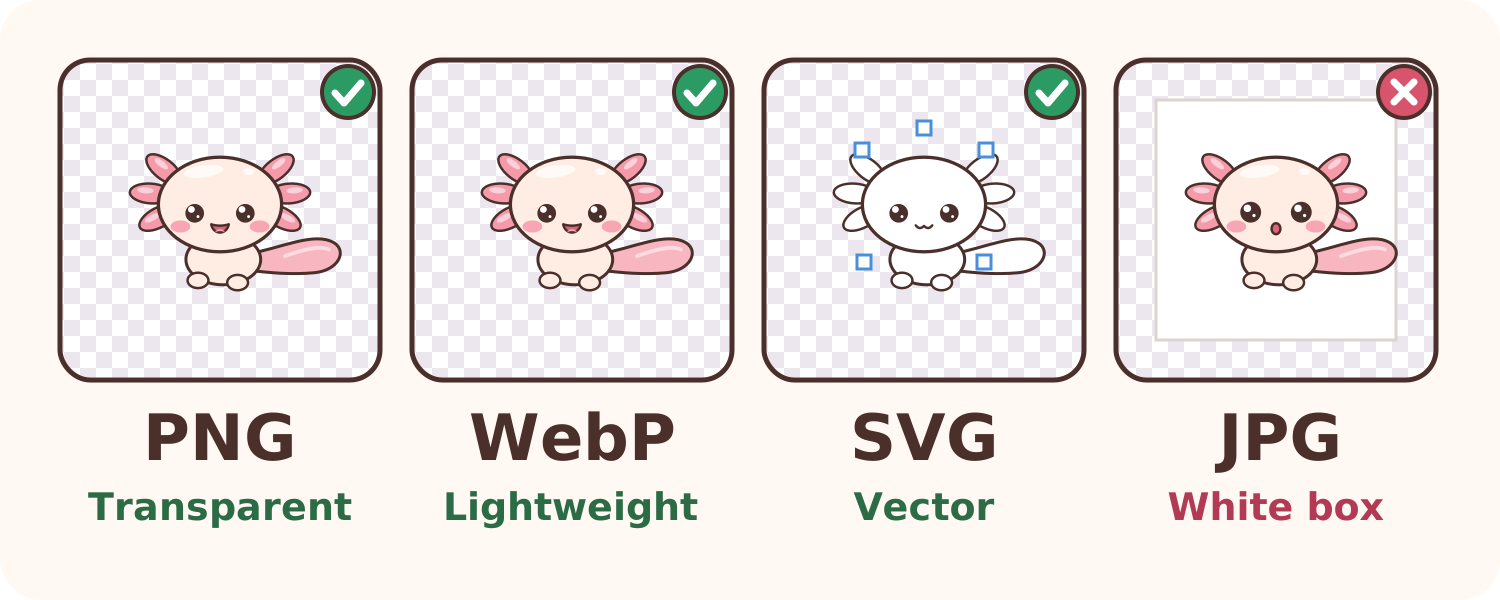
The grey-and-white checkerboard in the picture above is how apps show the transparent parts. The checkerboard itself never gets printed or placed.
| Format | Transparent? | Best for | Notes |
|---|---|---|---|
| PNG | Yes | Almost everything | The most common format for digital stickers |
| WebP | Yes | WhatsApp stickers, websites | Smaller files than PNG |
| SVG | Yes | Cutting machines, large prints | Vector, stays sharp at any size |
| GIF/APNG | Yes | Animated stickers & emotes | Animation; support varies by app |
| JPG | No | Photos | Always has a background, so you get a white box |
The right size and resolution
Digital images are measured in pixels (px). More pixels means more detail, but also bigger files.
- For screens (digital planners, chat, designs): 500–1000 px on the longest side is more than enough. Shrinking a sticker is safe, but enlarge it far beyond its original size and it starts to look blurry.
- For printing: what matters is DPI (dots per inch), the number of pixels used for each inch of paper. The standard for sharp prints is 300 DPI.
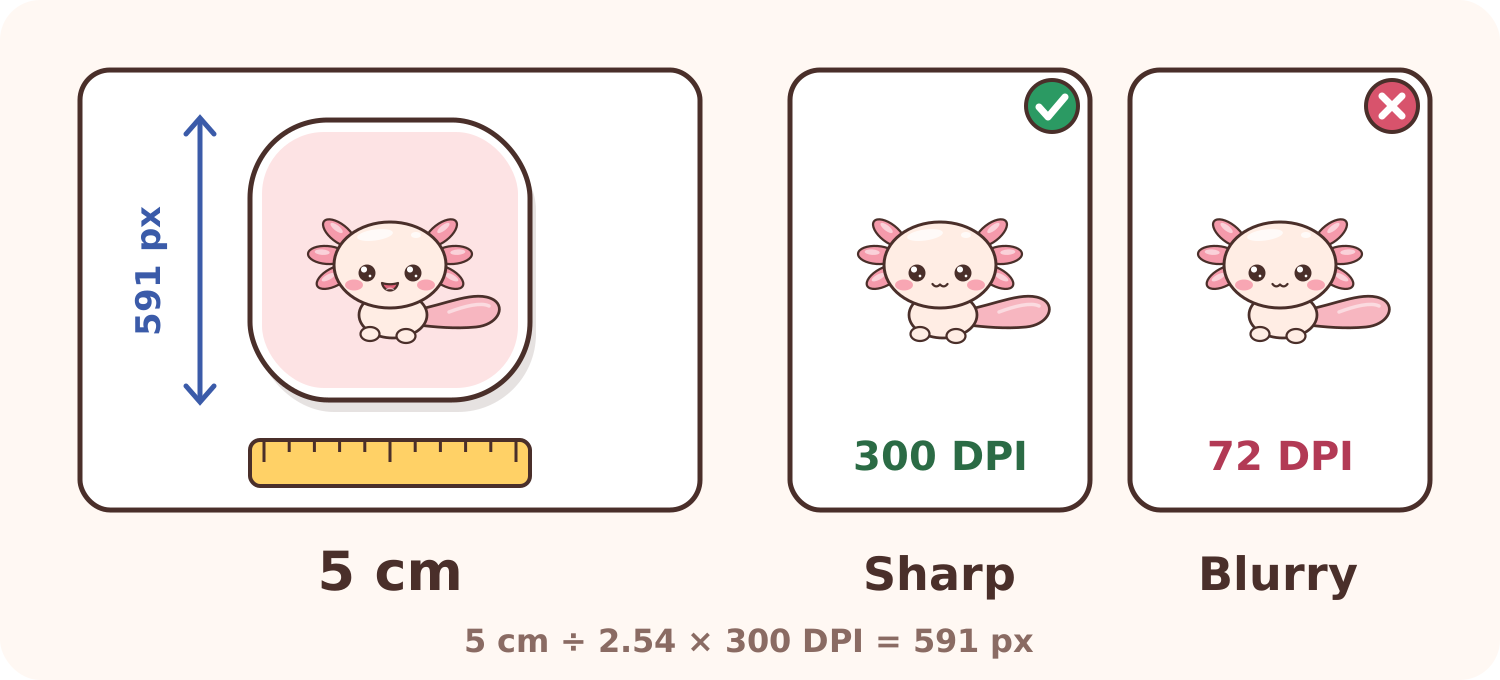
The easy formula: print size (cm) ÷ 2.54 × 300 = pixels you need.
| Printed sticker size | Minimum pixels (300 DPI) |
|---|---|
| 3 cm | 354 px |
| 5 cm | 591 px |
| 7 cm | 827 px |
| 10 cm | 1181 px |
After downloading: open, save, organize
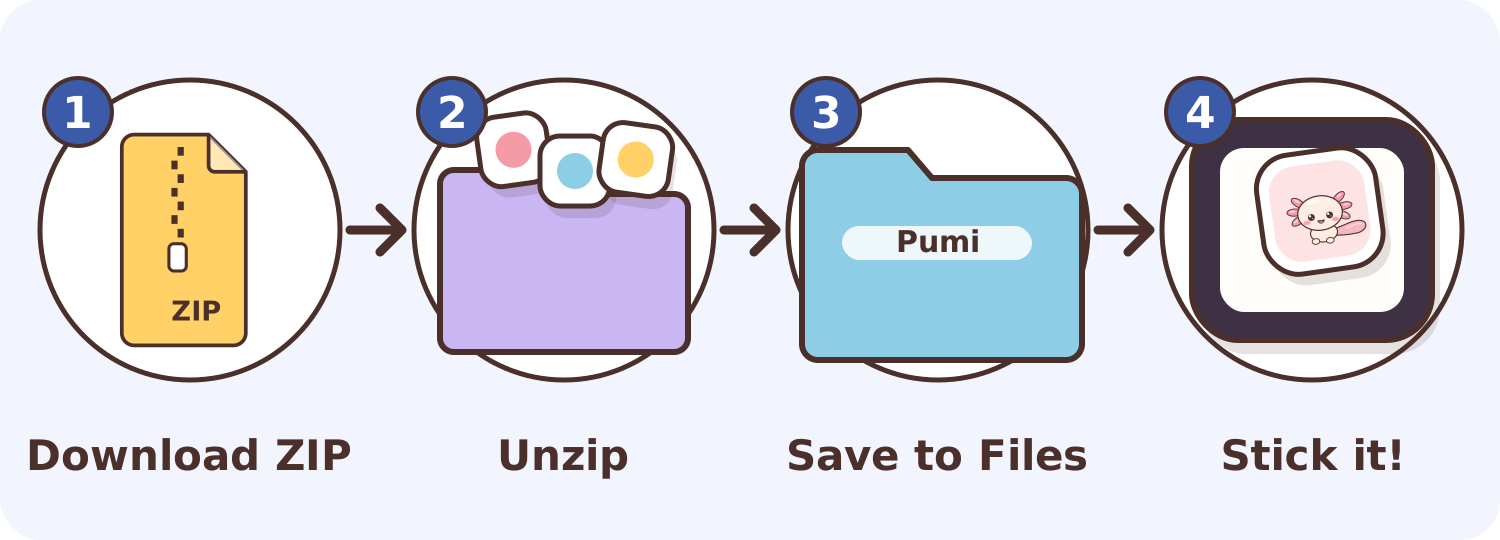
- Download the pack. It’s usually a single ZIP file.
- Unzip (open) the ZIP file. See the table below.
- Save the sticker folder somewhere easy to find, such as a "Stickers" folder in Files or in cloud storage.
- Stick them in your favorite app. The next section shows how.
| Device | How to unzip |
|---|---|
| iPhone / iPad | Open the Files app and tap the ZIP file. A folder with the stickers appears next to it. |
| Android | Open a file manager (for example Files by Google), tap the ZIP file, then choose Extract. |
| Windows | Right-click the ZIP file and choose Extract All. |
| Mac | Double-click the ZIP file. |
As your collection grows, group it by theme or by character. Ideas are in Organize Your Digital Sticker Collection.
Using stickers in your favorite apps
Menu names can differ a little between app versions, but the general steps look like this.
GoodNotes & Notability
Insert a sticker from the image menu in the toolbar (the image/photo tool in GoodNotes, the + button or insert menu in Notability), then choose the file from Files. Drag a corner to resize, and use the lasso tool to move it. To avoid importing again and again, save your favorite stickers to the app’s sticker or elements collection.
Detailed steps are in How to Use PNG Stickers in GoodNotes & Notability, and decorating ideas in 5 Tips for Decorating a Digital Planner with Stickers.
Canva
Open Uploads, choose Upload files, and pick your sticker. Once uploaded, drag it into your design like any other element, and the PNG background stays transparent.
WhatsApp stickers have their own rules: 512 × 512 px, WebP format, and static stickers up to 100 KB. Newer versions of WhatsApp let you create a sticker from an image in the sticker menu (the sticker icon, then Create). If your phone doesn’t have that yet, use a WhatsApp sticker maker app from your app store. Ideas for using them are in Digital Stickers for Chat.
Telegram
Telegram sticker packs are made with the official @Stickers bot: send the /newpack command and follow the steps. Images must be PNG or WebP with one side exactly 512 px and the other side 512 px or less.
Discord
There are two kinds: server emoji (128 × 128 px recommended, up to 256 KB) and server stickers (320 × 320 px, up to 512 KB). The number of slots depends on the server’s Boost level. Both are managed by the server owner or admins in Server Settings.
Twitch
Twitch emotes come in three square sizes: 112, 56, and 28 px, PNG, up to 1 MB per file. There’s also a simple upload option: one large image, and the smaller sizes are made automatically. Emotes show up tiny in chat, so pick artwork with clear expressions and bold lines.
Size cheat sheet
| Where | Size | Format |
|---|---|---|
| Digital planner | 500–1000 px | PNG |
| Canva | 500–2000 px | PNG, SVG |
| 512 × 512 px, max 100 KB | WebP | |
| Telegram | One side 512 px | PNG, WebP |
| Discord (emoji) | 128 × 128 px, max 256 KB | PNG, GIF |
| Discord (sticker) | 320 × 320 px, max 512 KB | PNG, APNG |
| Twitch (emote) | 112, 56, 28 px | PNG |
Full per-platform details, including LINE, are in Sticker Sizes for WhatsApp, LINE, Telegram, Discord & Twitch.
Printing paper stickers
Digital stickers can become real stickers for your notebooks, water bottle, or laptop.
- Choose your paper. Glossy sticker paper makes colors pop, matte doesn’t reflect light and is easy to write on, and vinyl is more water-resistant, great for bottles.
- Set the size. Place the stickers in a document the size of your paper (for example A4) and set their size in cm. Make sure there are enough pixels, using the table above.
- Print at 100% scale. Turn off options like Fit to page so the size doesn’t change, then pick the highest quality and the right paper type in your printer settings.
- Cut. Scissors or a craft knife are enough; leave a thin white border for a neat look. If you have a cutting machine like a Cricut or Silhouette, use its Print Then Cut feature.
- Protect (optional). Cover them with clear cold laminate to resist scratches and splashes.
No printer? Take the file to a local print shop and ask them to print it on sticker paper.
Usage rules (license)
When you buy or download stickers, you get permission to use them (a license), not the copyright to the artwork. For products on Pumimart, here’s the gist:
| You can 🌸 | You can’t ✋ |
|---|---|
| Decorate your planners, journals, and personal notes | Resell or share the original files |
| Wallpapers, avatars, chat, and personal social media | Print them to sell or make merchandise |
| Emotes on your own streaming channels & communities | Use them as a logo or in ads |
| Print them for your own use | Use them to train AI or as NFTs |
If a product page states a different license, the license on that product page applies. Examples are in What Can I Use Digital Stickers For?, and the full rules are in the Terms & Conditions.
Questions & answers
Why does my sticker have a white box?
The file is probably a JPG, or it turned into a JPG when saved to your gallery. Import the PNG again straight from the unzipped folder.
Why does the sticker look blurry when I enlarge it?
Every digital image has a limit to its detail. Enlarge it far beyond its original size and the pixels grow too. Use a smaller size, or pick a higher-resolution file (or an SVG, if there is one).
Can I use them on an Android phone?
Yes. PNG files work in Android notes apps, Canva, and chat apps. The only difference is where each app keeps its insert-image menu.
Can I share them with friends?
Using stickers in chat or showing off a photo of your planner page is totally fine. What’s not allowed is sharing the original files, like sending the ZIP to someone else. If your friend likes them, invite them to download their own.
Do digital stickers expire?
No. As long as you keep the files, you can use them any time. Keep a copy of the original ZIP in cloud storage so it’s safe if you change phones.
Ready to decorate?
Now you know all the basics, from formats to printing. If you’d like to start a collection, peek at the Pumimart sticker shelf, including the free Hello Pumiland pack to practice placing your very first sticker.
Happy decorating, and see you in the next note! 🌸
 Have a suggestion or critique for Pumiland?