
How to Use PNG Stickers in GoodNotes & Notability
From download to placement: quick steps to bring digital stickers into your favorite notes app.
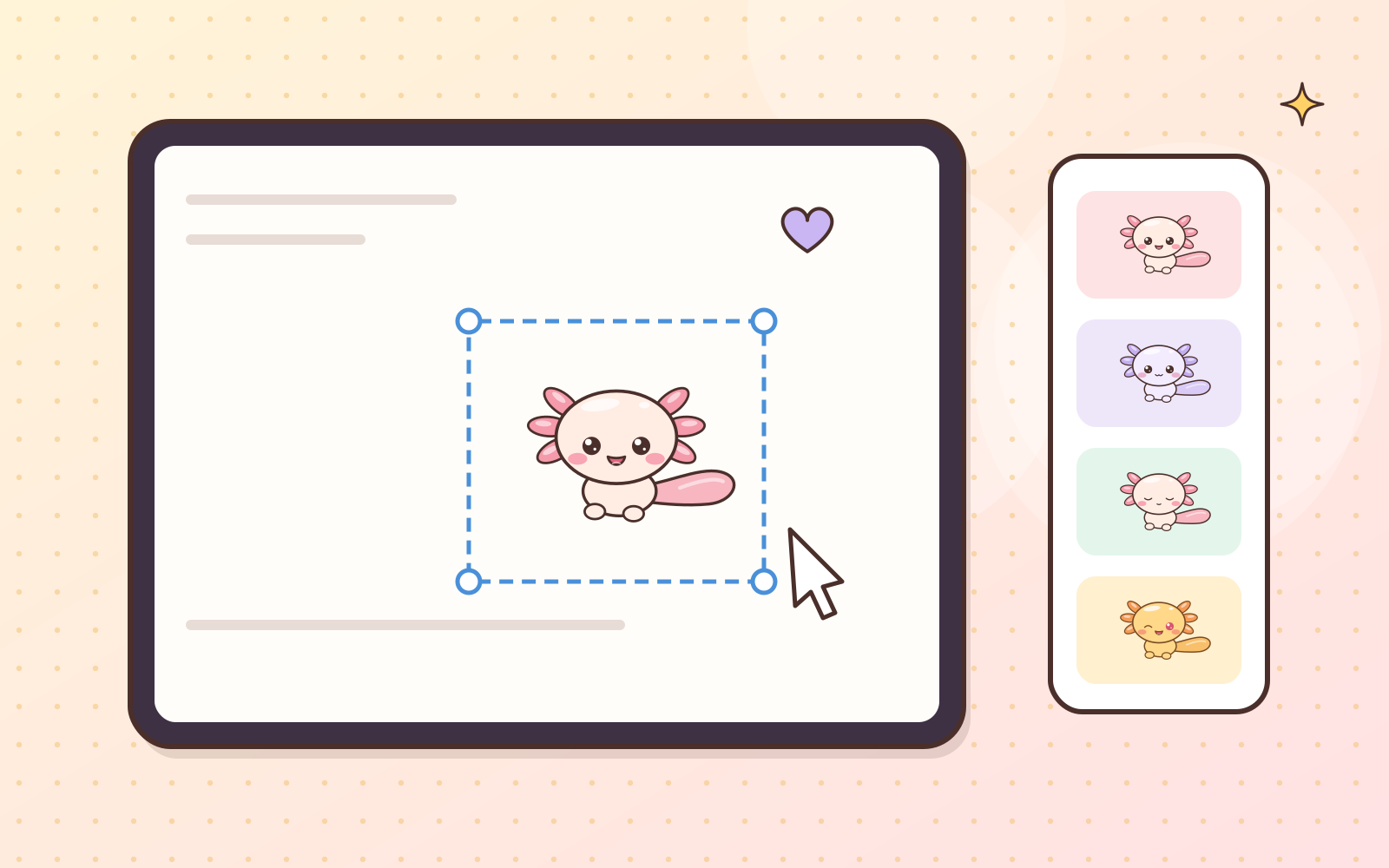
Got PNG stickers but not sure how to place them? Don’t worry, it works almost the same way in most notes apps. Here are the general steps.
1. Save the files somewhere easy to find
After downloading, save the stickers to the Files app (iPad/iPhone) or a folder on your device. If they come as a ZIP, open it first so the PNG files come out.
2. Add them to a page
- GoodNotes: use the image/photo tool in the toolbar, then pick your sticker file. In recent versions you can also save stickers to an Elements collection, so you just drag them in each time.
- Notability: tap the add (+) button or insert menu, choose photo or image, then pick your sticker.
- iPad shortcut: open Files and your notes app side by side (Split View), then drag the sticker straight onto the page.
Menu names can differ a little between app versions, but they’re usually behind an image icon or an add button.
3. Resize and position
Tap the sticker, then drag a corner handle to resize. To move a sticker that’s already placed, use the lasso tool.
4. Save your favorites
Instead of importing again every day, keep your most-used stickers in the app’s sticker collection (if it has one), or make one page of favorites to copy and paste from.
Seeing a white box around the sticker?
The file probably isn’t a transparent PNG, or it was converted to JPG when saved to your photo gallery. Try importing straight from the Files app. Read more in Transparent PNG: Why It Matters.
Android users: apps like Samsung Notes, Noteshelf, or Xodo can insert PNG images in a similar way.
 Guides · 9 min read
Part of the guide
The Complete Beginner’s Guide to Digital Stickers
Read the full guide →
 Have a suggestion or critique for Pumiland?