
Resolution & DPI: Keep Stickers Sharp When Printing
Printing stickers for yourself? Here’s how to work out the pixel size you need, with examples.
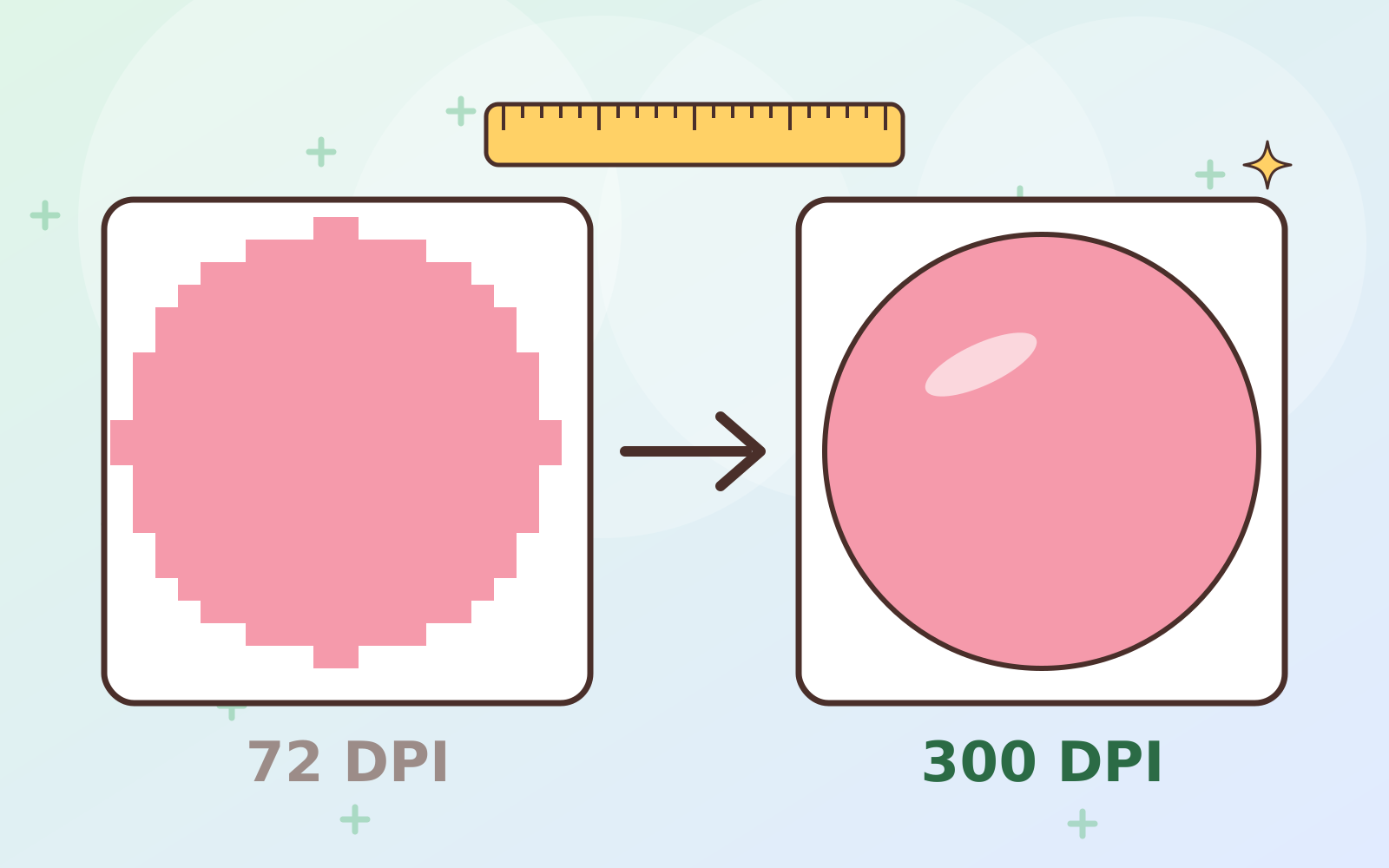
An image that looks sharp on screen can turn blurry or pixelated in print. The key comes down to two things: resolution and DPI.
Resolution = number of pixels
Resolution is an image’s size in pixels, like 1500 × 1500 px. More pixels means more stored detail.
DPI = density when printed
DPI (dots per inch) tells you how many dots are printed per inch (2.54 cm). For sharp prints, the common standard is 300 DPI.
The easy formula
pixels = print size (cm) ÷ 2.54 × 300
Examples:
- A 5 cm sticker → 5 ÷ 2.54 × 300 ≈ 591 px
- A 10 cm sticker → ≈ 1181 px
- An A4 sheet (21 × 29.7 cm) → ≈ 2480 × 3508 px
So a 1500 px image prints sharply up to about 12.7 cm.
Common mix-ups
- The DPI number in a file doesn’t add detail. Changing 72 DPI to 300 DPI in settings without adding pixels won’t make an image sharper.
- Enlarging a small image can’t add detail. It stays blurry, just bigger.
- For screens, pixel count is what matters, not the DPI number.
Before you print
- Check your image’s pixel size.
- Work out the maximum print size with the formula above.
- Print one test sheet before printing a lot.
Remember: Pumimart digital products may be printed for your own use, not for sale. See What Can I Use Them For? 🖨️
 Guides · 6 min read
Part of the guide
Sticker Sizes for WhatsApp, LINE, Telegram, Discord & Twitch: The Complete 2026 Guide
Read the full guide →
 Have a suggestion or critique for Pumiland?